
How to show a different size chart on each Shopify product
Let the data your products already carry pick the chart. A rule on a tag, a product type, a vendor or a collection covers most catalogs, title and SKU conditions catch the rest, and exclusions and priority settle the overlaps.
Don't attach charts product by product. Write one rule per chart from data your products already have, such as a tag, a product type, a vendor or a collection. Add a condition on the title or the SKU when that data is missing, exclude what shouldn't match, and check the list of matching products before you save. New products then get the right chart the day you add them, as long as they carry the same tag or type.
Start from what your products already have
Open one product of each kind in your Shopify admin and look at four fields: product type, vendor, tags and collections. One of them usually lines up with the way you size things.
| Your products differ by | Rule on | Example |
|---|---|---|
| Kind of garment | Product type | Type is Jeans: the jeans chart |
| Line or fit | Tag | Tag petite: the petite chart |
| Brand you resell | Vendor | Vendor is the brand: its own chart |
| Department | Collection | Collection Kids: the kids chart |
| Naming | Title | Title contains Maternity: the maternity chart |
| Product codes | Variant SKU | SKU starts with SH: the shoe chart |
Prefer the field that changes least. A product type or a tag is set once and stays. Titles get rewritten for a sale or for search, and a rule on a title word breaks quietly when the word goes.
If your data is messy (Dress, dresses and Midi dress as three product types), clean it once with Shopify's bulk editor before you write rules. Every rule you write later depends on it.
Conditions for what tags don't cover
Some catalogs have no tag or type that matches the sizing. A brand sells a regular and a wide fit of the same boot, and the only difference is in the title. That's what conditions are for.
In Ruban Size, a condition reads one field (product title, product handle, vendor, product type, product tag or variant SKU) and compares it: is, is not, contains, does not contain, starts with, ends with. Combine several with All conditions (AND) or Any condition (OR).
A few that come up often:
- Wide fit boots: product type is Boots, AND title contains "wide fit".
- One supplier's sizing: vendor is the supplier, AND product type is Coats.
- Kids by SKU: variant SKU starts with KD.
- Two spellings: title contains "t-shirt", OR title contains "tee".
A condition with an empty value would match every product, so the editor won't save one: it opens the tab, points at the field and asks for a value.
Everything, except
Often the shortest rule is "all products" with a few exclusions: every product except gift cards, bags and jewelry. In Ruban Size, open Exclude some products, then fill Never show on with tags, vendors, types, collections or products.
Exclusions win over everything above them, even over a product you picked by hand. That makes them a safe place for a tag like no-size-chart that your team adds to anything sold in one size.
By country, when the chart itself differs
Each chart can be limited to a list of countries, matched with the country chosen in your store's country selector. Leave it empty to show the chart everywhere.
You need this less often than you'd think. One chart can carry US, UK and EU sizes on rows of their own, with a switch for shoppers. The default follows the country: US sizes in the United States, UK sizes for Great Britain and Ireland, EU sizes elsewhere. Units follow too, with inches first in the US. Keep country rules for the cases where the chart itself changes, such as a range sold in one market only. The differences between systems are in women's clothing sizes: US, UK and EU compared.
When two charts match: tabs and priority
When several charts match one product, they all show, as tabs, up to 20 per product. That is what you want for a set: a bikini top and bottom, a suit jacket and trousers, each with its own table.
When it isn't what you want, you have two fixes. Exclude the product from one of the charts, or set the priority under Advanced in the chart: the highest number comes first.
See the products before you save
The Where it shows tab counts the products a chart will show on as you type, and lists the first five. If the count looks wrong, it usually is: a tag typed with a capital the products don't have, an OR where you meant AND, a "contains" too short to be specific.
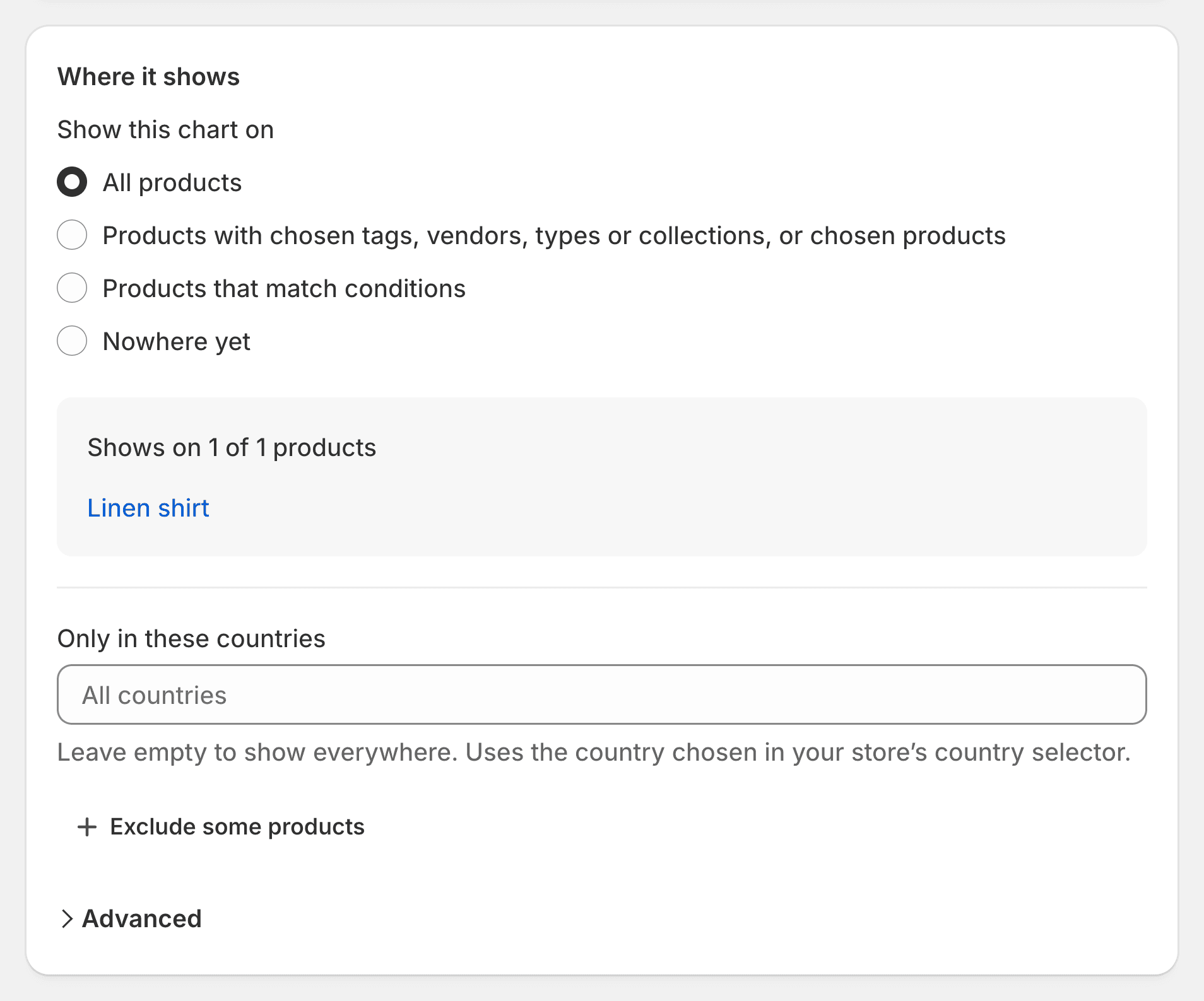
Check the count every time you change a rule. It's the same matching the storefront uses, so what you see is what shoppers get. The product rules page shows every option.
Find the products with no chart
Rules miss things: a product imported without its tag, a new type nobody thought of. The coverage report in Insights > Coverage reads your products and charts in your browser and lists:
- Products with a size option and no chart, each with a one-click fix to attach an existing chart.
- Charts shown nowhere: active charts that match no product.
- Products with several charts, to check that the tabs are the ones you meant.
- A previous size chart app still installed, which could show shoppers two size guides.
The report is kept and checked again when your products or charts change. Run through it after a big import or a new collection.
A plan that stays tidy
- One chart per cut, not per product. Tops cut from the same pattern share a chart. Start from one of the 39 templates and adjust the values.
- One kind of rule per chart. A chart attached by type and another by tag will overlap sooner or later.
- Name sizing tags for what they do. fit-petite says why it exists; a tag reused for marketing will drift.
- Write the exclusions as tags. Your team can then take a product out of a chart without opening the app.
Moving from another app? On Pro and Fit, the import recreates each chart with the products it shows on, and you preview them before anything is created. More on the import and export page. If you're starting from scratch, how to add a size chart to Shopify covers the first chart, step by step.
Questions
Can I assign a size chart by product tag in Shopify?
Not with Shopify alone: it has no size chart rules. A size chart app does it: in Ruban Size, choose Product tags under Where it shows, and every product with the tag shows the chart, new ones included.
What happens when two size charts match the same product?
In Ruban Size both show, as tabs, the highest priority first, up to 20 per product. To keep only one, exclude the product from the other chart or raise the priority of the one that should lead.
Can I show a different size chart in each country?
Yes. Each chart can be limited to a list of countries, matched with your store's country selector. For sizes alone, one chart with US, UK and EU systems is simpler: the default system follows the shopper's country.
How do I find products that have no size chart?
In Ruban Size, open Insights, then Coverage. It lists every product with a size option and no chart, with a one-click fix, plus charts that show nowhere and products with several charts.
Keep reading
- Shopify guidesHow to add a size chart to ShopifyShopify has no size chart tool of its own, so you add one with an image, a page, metafields or an app. An app gives you real tables, the right chart on each product and a cm/in switch; the other ways mostly get you an image.6 min
- Shopify guidesWhere to put the size chart on a product pageRight next to the size option, above Add to cart, as a link that opens the chart without leaving the page. On phones, a panel that slides up from the bottom. Inline and accordion layouts suit pages where the chart belongs in the details.5 min
- Sizing explainedSize chart vs size guide: what's the differenceA size chart is the table: sizes on one side, measurements on the other. A size guide is everything a shopper needs to use it: the chart, how to measure, how the item fits, and a way to get a size from their own numbers.5 min
- Shopify guidesAdding a size chart to the Dawn and Horizon themesTurn on the app embed in the theme editor and save: on Dawn and Horizon, the Ruban Size link lands next to the size option by itself. Add the app block instead when you want a fixed spot, or the chart inline on the page.5 min