
Adding a size chart to the Dawn and Horizon themes
Turn on the app embed in the theme editor and save: on Dawn and Horizon, the Ruban Size link lands next to the size option by itself. Add the app block instead when you want a fixed spot, or the chart inline on the page.
Dawn and Horizon are Shopify's own free themes, and both are Online Store 2.0 themes. That gives a size chart app two ways in. The app embed works on every theme and is switched on once for the whole theme. The app block works on Online Store 2.0 themes and is added to the product page, where you drag it into place.
With Ruban Size, start with the embed: turn it on, save, and the "Size guide" link places itself next to the size option. Dawn and Horizon are among the themes it was checked on. Reach for the block when you want the link somewhere else, or the chart shown inline.
App embed or app block
| App embed | App block | |
|---|---|---|
| Where you turn it on | App embeds, in the theme editor | Added to the product section of a template |
| Where the link goes | Next to the size option, placed by the app | Exactly where you drag it |
| Product templates | Every one, at once | Each template you add it to |
| Themes | Every theme, older ones too | Online Store 2.0 themes |
| Best for | Most stores, the first setup | A fixed spot, an inline chart |
You can use both. On pages where the block is present, the embed steps aside, so shoppers never see two links.
Turn on the app embed
The shortcut, from Ruban Size:
- On the app's Home page, click Turn on in the theme editor.
- Your theme editor opens with Ruban Size turned on. Click Save.
- Come back to the app: the setup step checks itself.
The same thing by hand, in the theme editor:
- In your Shopify admin, go to Online Store > Themes and click Customize on your live theme.
- Open the App embeds panel of the theme editor.
- Turn on Size chart (all themes), the Ruban Size embed.
- Click Save.
From then on, every product with an active chart shows the link next to its size option. The embed has a few settings of its own in the same panel:
- Placement: Automatic (next to the size option), or Custom, where you give a CSS selector to place the link after.
- Link text: leave it empty to use the text set in Ruban Size, translated in every language of your store.
- Quick view: add the size guide to your theme's quick view (on Pro and Fit).
- Highlight: mark the size selected on the page in the table.
On 25 of the 26 themes most used by stores with size charts, the automatic placement puts the link in the right spot without any setting. That was checked on the themes of 1,121 stores, Dawn and Horizon included.
Add the app block
When you want the link in a spot of your choosing:
- In the theme editor, open a product page: pick Products, then your product template, in the page selector at the top.
- In the section that holds the product's title, price and size option, click Add block.
- Choose Size chart from Ruban Size, among the apps.
- Drag the block where you want it: under the size option, above the buy buttons, or lower down near the description.
- Pick its Layout: Link + window, as set in Ruban Size; Link + popup; Link + side drawer; Inline on the page; or Accordion.
- Click Save.
The panels look a little different from one theme to the next. The idea is the same everywhere: find the section with the product's details and add the block there. From Ruban Size, the page Where the size guide appears has a button, Add the block to the product page, that opens the theme editor with the block already added.
On the Free plan, the guide opens as a popup whatever you pick here. The drawer, inline and accordion layouts come with Pro and Fit, as the pricing page lists.
When to drag the block
Most stores never need it. These are the cases where it helps:
- An inline chart. You want the chart on the page itself, under the description or in its own spot.
- A spot the embed doesn't pick. Your product page has a custom layout, and you want the link beside the size label rather than under the picker.
- A product template of its own. Some products use another template, such as one for shoes. The embed covers every template at once; a block has to be added to each template where you want it.
- An accordion. The block's Accordion layout folds the chart away like your theme's own tabs and accordions, one tap to open.
The pros and cons of each layout are in where to put the size chart.
Check that it worked
In Ruban Size, the page Where the size guide appears reads your live theme and tells you whether the guide is on, and how it's placed.
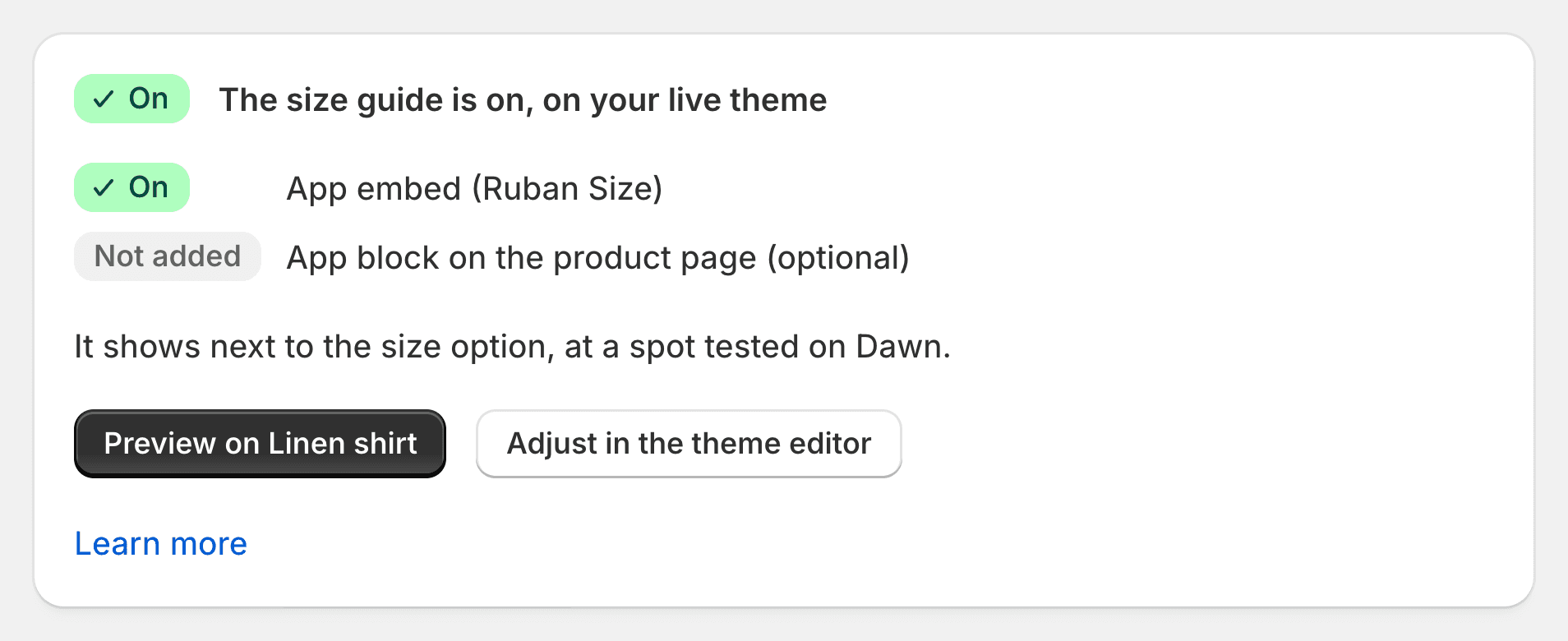
Then open a product that should show a chart, on a computer and on a phone. If the link is missing, check these in order:
- The embed was saved. Turning it on without clicking Save leaves it off.
- It's the live theme. App embeds are saved per theme. On a copy or a new theme, turn the embed on there too.
- The chart is Active. A draft never shows.
- A rule matches this product. The Where it shows tab of the chart lists the products it shows on.
Or we place it for you
If the link still isn't where you want it, write to us from the contact page. We place the size guide in your theme by hand, for free, and reply within the day. Coming from another size chart app, there's usually nothing to move: the guide shows where the old link was (in the same style, from Kiwi, MP or BF) and hides the old link until you uninstall it.
The rest of the setup, from template to rules, is in how to add a size chart to Shopify. The product rules page shows how placement and rules work together, and the design page shows the link, window and table styles.
Questions
Should I use the app embed or the app block on Dawn?
Start with the app embed: it places the link next to the size option on every product template at once. Use the app block when you want the chart inline, or the link in a spot the embed doesn't choose.
Why doesn't my size chart show on my Horizon product page?
Check that the embed was saved on the live theme, that the chart is Active, and that one of its rules matches the product. App embeds are saved per theme, so a new theme or a copy needs the embed turned on again.
Does the app embed work on older themes?
Yes. App blocks need an Online Store 2.0 theme, but the Ruban Size embed works on every theme, vintage ones included. Its automatic placement was checked on older themes such as Debut and Brooklyn too.
Will the size guide match my theme's fonts and colors?
Yes, by default the guide uses your theme's fonts and colors. The Appearance page in Ruban Size changes the rest, with a live preview.
Keep reading
- Shopify guidesWhere to put the size chart on a product pageRight next to the size option, above Add to cart, as a link that opens the chart without leaving the page. On phones, a panel that slides up from the bottom. Inline and accordion layouts suit pages where the chart belongs in the details.5 min
- Shopify guidesHow to add a size chart to ShopifyShopify has no size chart tool of its own, so you add one with an image, a page, metafields or an app. An app gives you real tables, the right chart on each product and a cm/in switch; the other ways mostly get you an image.6 min
- Shopify guidesWill a size chart app slow down your Shopify store?It can, but it doesn't have to. A size chart slows a page when the app fetches it from its own servers on every visit or loads heavy scripts up front. Written into the page by your theme from your store's own data, with a small script to open it, it costs very little.6 min
- Shopify guidesHow to show a different size chart on each Shopify productLet the data your products already carry pick the chart. A rule on a tag, a product type, a vendor or a collection covers most catalogs, title and SKU conditions catch the rest, and exclusions and priority settle the overlaps.6 min