
How to add a size chart to Shopify
Shopify has no size chart tool of its own, so you add one with an image, a page, metafields or an app. An app gives you real tables, the right chart on each product and a cm/in switch; the other ways mostly get you an image.
The short answer: install a size chart app, turn on its app embed in the theme editor, start from a template, choose which products show it, and save. You can also do it without an app, with an image in the product description, a size guide page or a metafield. Those work, with limits that show up on phones and as soon as you sell more than one kind of product.
Here are the four ways, what each one costs you, then the steps with an app.
Four ways to add a size chart
1. An image in the product description
Make the table in a spreadsheet or a design tool, export it as an image, and insert it into the product description in your Shopify admin.
It's free and works on any theme. The trouble starts on a phone: an image made at desktop width shrinks to the width of the screen, and the numbers shrink with it. Shoppers can't switch between centimeters and inches, can't search the text, and screen readers get the alt text at best. Every change means a new image, pasted again into every product that uses it.
2. A size guide page
Create a page under Online Store > Pages, put your chart on it, as text or as an image, and link to it from the product page or the footer menu.
One page is easy to keep up to date. But shoppers leave the product page to read it, and one page can't know which chart a product needs. Dresses, jeans and shoes end up on one long page, and the shopper has to find the right section.
3. Metafields
Metafields let you store a chart per product, or one chart as a metaobject that many products point to, and show it with a block in the theme editor. This is the cleanest way without an app, and we walk through it in size charts and Shopify metafields.
The limits: you attach the chart product by product (the bulk editor helps), there is no rule like "every product tagged jeans", and the table itself is the hard part. Most do-it-yourself charts still end up as an image or a block of text, with no unit switch.
4. A size chart app
An app stores your charts as real tables, attaches them to products by rule, and adds a "Size guide" link to the product page. Shoppers get a table that fits a phone screen, a switch between cm and inches and, with some apps, a size finder.
| Way | Right chart per product | On a phone | cm and inches | To update a chart |
|---|---|---|---|---|
| Image in the description | By hand, product by product | Small text, pinch to zoom | Two images, or both in one | New image, pasted everywhere |
| Size guide page | No, one page for all | Depends on the page | Typed twice | Edit one page |
| Metafields | Yes, set on each product | Depends on your block | Typed twice | Edit one entry |
| Size chart app | Yes, by rules | A real table | A one-tap switch | Edit one chart |
How to add a size chart with Ruban Size
Ruban Size is the app we make. Here is what adding a chart looks like with it, from install to a chart live on your product pages.
- Install the app. In the Shopify App Store, find RubanSize: Size Chart & Finder and install it. The Free plan holds 5 active charts, with every rule, the templates and Find my size.
- Turn on the app embed. On the app's Home page, click Turn on in the theme editor. Your theme editor opens with Ruban Size switched on: click Save there. On 25 of the 26 themes most used by stores with size charts (checked on the themes of 1,121 stores), the "Size guide" link then lands next to the size option by itself.
- Start from a template. In Size charts, open Templates and pick one of the 39, in 11 categories: dresses, jeans, bras, suits, kids, shoes, rings, dog coats and more. It opens as a draft with typical measurements, a how to measure guide and Find my size. Browse them on the templates page.
- Or paste your own. Copy the cells from Excel, Numbers or Google Sheets and paste them into any cell of the grid. Ranges like 35-36, fractions like 38 1/8 and heights like 5′9″ are read as numbers, so they convert to inches.
- Adjust it. Change the values, put sizes in rows or columns, add US, UK and EU size systems on rows of their own, and add blocks: text, an image, a video, a how to measure guide. The preview beside the editor shows the guide on a phone or a computer.
- Choose where it shows. In the Where it shows tab, pick all products, chosen tags, vendors, types or collections, chosen products, or conditions on the title. The number of matching products updates as you choose, with the first ones listed.
- Turn on Active and save. The chart shows at once on those products. A draft never shows, even when it's attached to a product.
- Check a product page. Open a product that should show the chart, on your phone too. On phones, the guide slides up from the bottom of the screen.
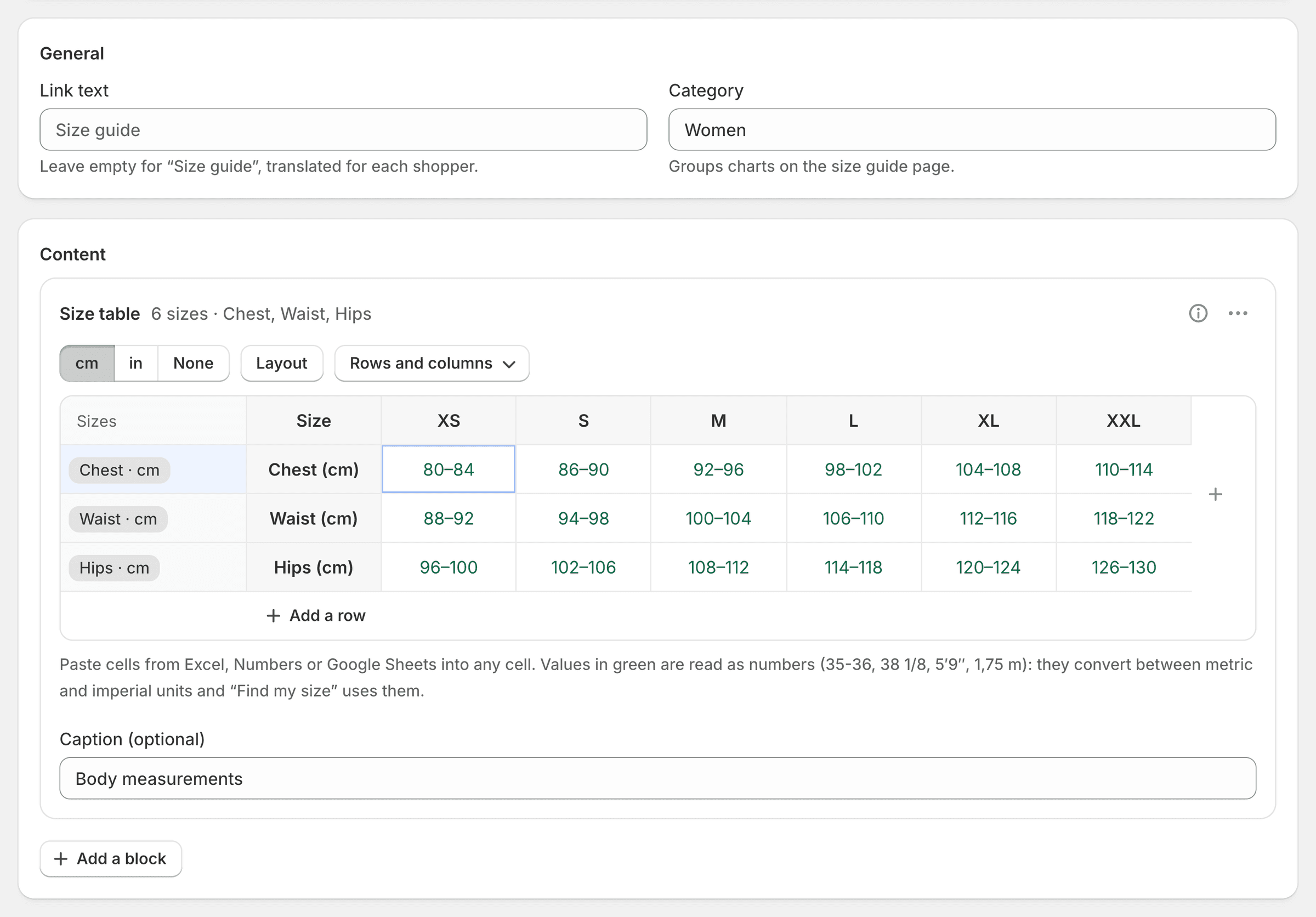
The size chart editor has more than the grid: merged cells, tabs, columns, a gallery, shared sections written once for many charts, and a version history.
Already using another size chart app? The import (on Pro and Fit) finds it on your store and recreates its charts with the products they show on, and the guide shows where the old link was. CSV, JSON and pasted tables work on every plan. The import and export page has the details.
Tips that save you a second pass
- One chart per cut, not per product. Dresses cut from the same pattern share one chart. A rule on a tag or a product type attaches it to all of them, and to the next one you add. The product rules cover tags, types, vendors, collections, titles, SKUs and countries; we go through them in how to show a different size chart on each product.
- Say what was measured. A body chart and a garment chart can list the same chest for different sizes. Write "body measurements" or "garment measurements, laid flat" above the table.
- Put the link next to the size option. That is where the size gets chosen. More on that in where to put the size chart.
- Test on a phone, not a resized desktop window. Open the guide with one thumb, read the largest size, switch units, close it.
Questions
Does Shopify have a built-in size chart?
Shopify has no dedicated size chart feature. You can show a chart with the tools it has, such as product descriptions, pages, metafields and theme blocks, or with a size chart app from the Shopify App Store.
Can I add a size chart to Shopify without an app?
Yes: an image in the product description, a size guide page, or a metafield shown by a block in your theme. They work for a few products in one unit; for the right chart on each product, a unit switch and tables that read well on phones, an app does the work.
How do I add a size chart to only some products?
With rules. In Ruban Size, each chart's Where it shows tab picks its products by tag, vendor, type, collection, title, SKU or by hand, and lists the matching products before you save.
Is there a free size chart app for Shopify?
Ruban Size has a Free plan: 5 active size charts, every rule, the templates and Find my size, in the popup layout, with a small "Size chart by Ruban Size" line. The pricing page shows what Pro and Fit add.
Keep reading
- Shopify guidesHow to show a different size chart on each Shopify productLet the data your products already carry pick the chart. A rule on a tag, a product type, a vendor or a collection covers most catalogs, title and SKU conditions catch the rest, and exclusions and priority settle the overlaps.6 min
- Shopify guidesWhere to put the size chart on a product pageRight next to the size option, above Add to cart, as a link that opens the chart without leaving the page. On phones, a panel that slides up from the bottom. Inline and accordion layouts suit pages where the chart belongs in the details.5 min
- Shopify guidesSize charts on phones: why image charts failAn image chart made on a desktop shrinks to the width of a phone, so its numbers get too small to read, and it can't switch units, be searched or be read aloud. A real table in a panel that slides up from the bottom, with headers that stay put and big tap targets, fixes all of it.5 min
- Shopify guidesAdding a size chart to the Dawn and Horizon themesTurn on the app embed in the theme editor and save: on Dawn and Horizon, the Ruban Size link lands next to the size option by itself. Add the app block instead when you want a fixed spot, or the chart inline on the page.5 min