
Size charts and Shopify metafields: how they fit together
Metafields add your own fields to products, and metaobjects let you define a kind of content, like a size chart, once and reuse it. You can build a chart from them yourself. Ruban Size uses the same pieces, so your charts live in your store and show without its servers.
A metafield is an extra field you add to a product (or a variant, a collection, the shop). A metaobject is a kind of content you define yourself, with its own fields, such as "Size chart" with a title, a table and notes. Put the two together and each product points to the chart it needs, which you write once. That's a working size chart without an app. It also has limits, and they're the reason size chart apps exist.
Metafields and metaobjects, in plain words
Metafields are custom fields. You define one in Settings > Custom data: a name, a type (text, number, file, JSON, a reference to something else, or a list), and the resource it belongs to, such as products. Then you fill it in on each product. Themes read metafields in Liquid, and Online Store 2.0 themes let you connect many block settings to a metafield in the theme editor, with dynamic sources.
Metaobjects are your own content types. You define the fields once, then add entries: one "Size chart" entry for women's tops, one for jeans, one for shoes. A product metafield can then reference an entry, so every top points to the same tops chart.
For size charts, that's the whole difference. With a plain metafield you copy the chart into every product. With a metaobject reference you write the chart once and point products at it.
Building a size chart with metafields yourself
- Define the chart. In Settings > Custom data, add a metaobject definition called Size chart, with fields such as Title (single line text), Chart (a file for an image, or multi-line text) and Notes.
- Add the entries. One entry per chart: tops, jeans, shoes.
- Link products to charts. In Settings > Custom data > Products, add a metafield definition, Size chart, of the type metaobject reference, pointing to your Size chart definition.
- Pick a chart on each product. Open a product, find the metafield and choose its chart. For many products, Shopify's bulk editor saves time.
- Show it in the theme. In the theme editor, add a block to the product page that can show the content, and connect it to the metafield with a dynamic source. If your theme has no block that fits, a few lines of Liquid in the theme code do it.
That's a real, reusable chart. Change the jeans entry and every pair of jeans shows the new values.
Where the do-it-yourself version falls short
- The table. A size chart is rows and columns. The usual workarounds are an image, which is hard to read on a phone, or text that custom Liquid turns into a table. We look at the image problem in size charts on phones.
- Attaching. Each product gets its chart by hand, or by bulk edit. There's no rule like "every product tagged jeans, except the kids' ones", so every new product needs the field set.
- No unit switch, no size systems. Centimeters or inches are written into the chart, and US, UK and EU sizes are extra columns.
- No size finder. Shoppers read the table and work out their size on their own.
- Theme code to carry. Custom Liquid lives in your theme's code, so it has to be carried over when you update or change themes.
How Ruban Size uses the same pieces
Ruban Size builds on metaobjects and metafields too. The difference is what sits around them: an editor, rules, and a theme extension that reads them.
- Each chart is a metaobject in your store. Its fields hold the title, the link text, the status (active or draft), the priority, the blocks (tables, text, images, how to measure), the rules and the display settings.
- Products picked by hand are listed in a product metafield, Size charts, that references their charts.
- Rules and settings live in metafields of the app's installation, in your store: an index of the rules by tag, vendor, type and collection, the title and SKU conditions, and your appearance settings.
- Translations are saved in your store too, as Shopify translations of the chart's fields.
The definitions are reserved to the app, so only Ruban Size writes to them. Another app or a stray edit can't break a chart's format.
When a shopper opens a product page, the Ruban Size theme extension reads all of this in Liquid, and Shopify writes the chart into the page's HTML with the rest of the product. Nothing is fetched from Ruban Size's servers. If they were down, your product pages would still show their charts. The store speed article goes through what that means for load time.
Rules then do what a reference field can't. A chart can show on all products, on chosen tags, vendors, types or collections, on conditions on the title or SKU, in chosen countries, with exclusions and a priority. You see the products it will show on before you save. The product rules page lists every option.
Your charts, exportable
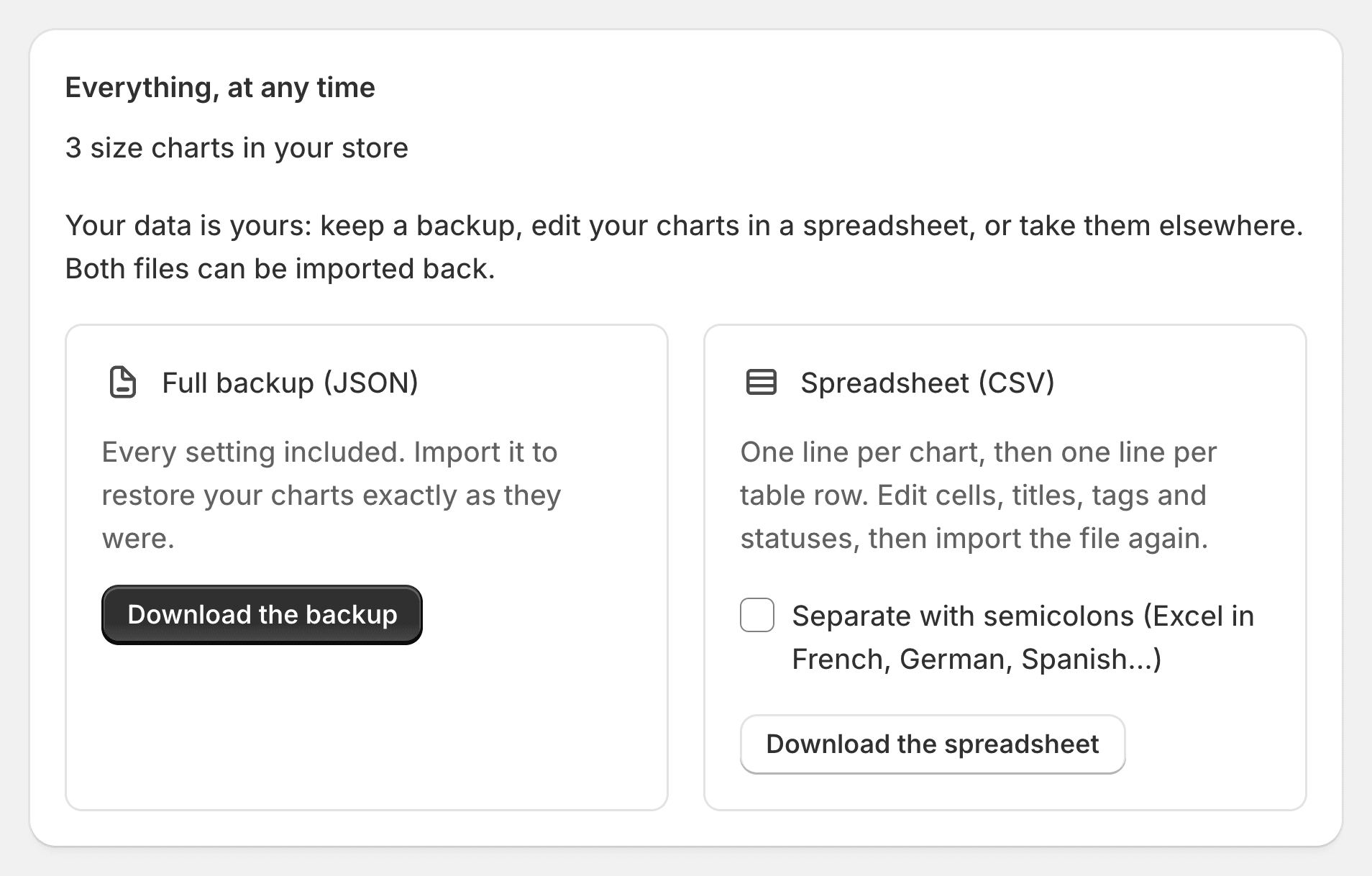
Your charts are yours to take, whenever you want. From Size charts, Export gives you:
- A full backup (JSON), on every plan, with every setting and your shared sections.
- A spreadsheet (CSV), on Pro and Fit: one line per chart, then one per table row, to edit in Excel or Google Sheets.
Both import back, to restore your charts or update them after editing.
Keep a backup before any big change, as you would with any app. The import and export page has the details.
Moving metafield charts into Ruban Size
If you already built charts with metafields, you don't have to retype them:
- Text tables: copy the cells and paste them into the editor grid, on every plan. Ranges like 35-36 and fractions like 38 1/8 are read as numbers.
- Spreadsheets: import a CSV, on every plan.
- Images and PDFs: on Pro and Fit, the AI import reads a photo, a PDF or a web page into a draft chart. Values it can't read are left empty and flagged, so you check each one before the chart shows anywhere.
Then attach them with rules instead of a field on each product, and leave your old metafield in place until you're done. The size chart editor shows what else a chart can hold.
Questions
Can I make a size chart with Shopify metafields only?
Yes. Define a Size chart metaobject, reference it from a product metafield, pick a chart on each product, and show it with a block or some Liquid in your theme. You get one chart per kind of product, but no rules, no unit switch and no size finder.
What is the difference between a metafield and a metaobject?
A metafield is an extra field on a product or another resource. A metaobject is a content type of your own, with several fields, that many products can reference, so one chart serves every product that points to it.
Where does Ruban Size store my size charts?
In your store: each chart is a metaobject, products picked by hand are listed in a product metafield, and rules and settings are metafields of the app's installation. Your theme reads them when it renders the page.
Can I export my size charts from Ruban Size?
Yes, at any time. A full JSON backup is on every plan, and a CSV spreadsheet on Pro and Fit; both can be imported back.
Keep reading
- Shopify guidesWill a size chart app slow down your Shopify store?It can, but it doesn't have to. A size chart slows a page when the app fetches it from its own servers on every visit or loads heavy scripts up front. Written into the page by your theme from your store's own data, with a small script to open it, it costs very little.6 min
- Shopify guidesHow to add a size chart to ShopifyShopify has no size chart tool of its own, so you add one with an image, a page, metafields or an app. An app gives you real tables, the right chart on each product and a cm/in switch; the other ways mostly get you an image.6 min
- Shopify guidesSize charts on phones: why image charts failAn image chart made on a desktop shrinks to the width of a phone, so its numbers get too small to read, and it can't switch units, be searched or be read aloud. A real table in a panel that slides up from the bottom, with headers that stay put and big tap targets, fixes all of it.5 min
- Shopify guidesHow to show a different size chart on each Shopify productLet the data your products already carry pick the chart. A rule on a tag, a product type, a vendor or a collection covers most catalogs, title and SKU conditions catch the rest, and exclusions and priority settle the overlaps.6 min