
How to add sizes to Shopify products as variants
Open the product in your Shopify admin, add an option named Size in the Variants section, and type one value per size. Shopify makes a variant for each, with its own price, SKU and stock, and your theme shows them as the size picker.
In Shopify, sizes are variants. You open a product, add an option called Size, and type the sizes you sell as its values. Shopify creates one variant per size, each with its own price, SKU, barcode and stock. On the product page, your theme turns the option into a size picker, as buttons or a dropdown.
That is better than one product per size: one page, one set of photos and reviews, and the shopper picks the size where they decide.
Adding sizes, step by step
- Open the product in your Shopify admin, under Products, or create a new one.
- In the Variants section, add an option. Name it Size.
- Type the values, one per size, from smallest to largest: XS, S, M, L, XL. The order you give them is the order shoppers see; drag them to change it.
- Click Done. Shopify creates a variant for each value.
- Set each variant's details: price (if larger sizes cost more), SKU, barcode and the quantity in stock. For many products at once, the bulk editor saves time.
- Add a second option if you need one, like Color. Shopify makes a variant for every combination: three colors in five sizes is 15 variants, each with its own stock.
- Save, then open the product page to check the picker, on a phone too.
A product with no options has a single variant behind the scenes, which is how one-size products are usually sold. What "one size" means covers what to show on those.
Naming sizes so everything matches
The same size is written in three places: the variant, the size chart, and the label sewn into the garment. Keep them identical.
- One spelling per size. M or Medium, not both across your catalog. "XL" and "X-Large" look the same to a shopper and different to everything else.
- One system per product. Letters, or numbers, or both in the chart with one of them as the variant. A dress can be sold as S, M, L with the US, UK and EU numbers in the size chart.
- Half sizes written one way. 7.5, or 7½: pick one.
- Length as its own option. "Regular" and "Tall" belong in an option named Length, not in the size value ("M Tall"). Ruban Size's scrubs template lists the regular and tall inseams as two rows over the same sizes.
- The option named Size. Size, Shoe size or Ring size, in your store's language: it tells apps and people which option is the size.
Stock, sold-out sizes and SKUs
Track quantity per variant, and a size that sells out shows as unavailable while the others stay on sale. Many themes cross it out or grey it in the picker. Decide per product whether a sold-out size can still be ordered ("continue selling when out of stock"), and say so if it ships later.
SKUs are worth setting per size even in a small store. They make the bulk editor, stock counts and returns easier to read, and they can carry the product family: a shared start like DR- for dresses and JN- for jeans lets rules and searches group them.
What a size chart does with your variants
A size chart becomes much more useful when it knows your variants. Here is what Ruban Size does with them:
- The chosen size, highlighted. When a shopper picks M on the page, the M column lights up in the guide, and follows every change.
- Sold-out sizes, marked. Still readable in the table, with a label, so shoppers see the measurements of the size they missed.
- "Select this size". Find my size suggests a size from the shopper's measurements, then "Select this size" picks the matching option in your theme's size picker ("Size M selected"), closes the guide and brings the shopper back to the picker. If that size is sold out, the answer says "Your size: M. Sold out right now." and offers the closest size in stock, when it is within one size.
- "Your size: M" on every product. The shopper's measurements stay on their device, and a badge next to the size picker shows their size on every product with a chart.
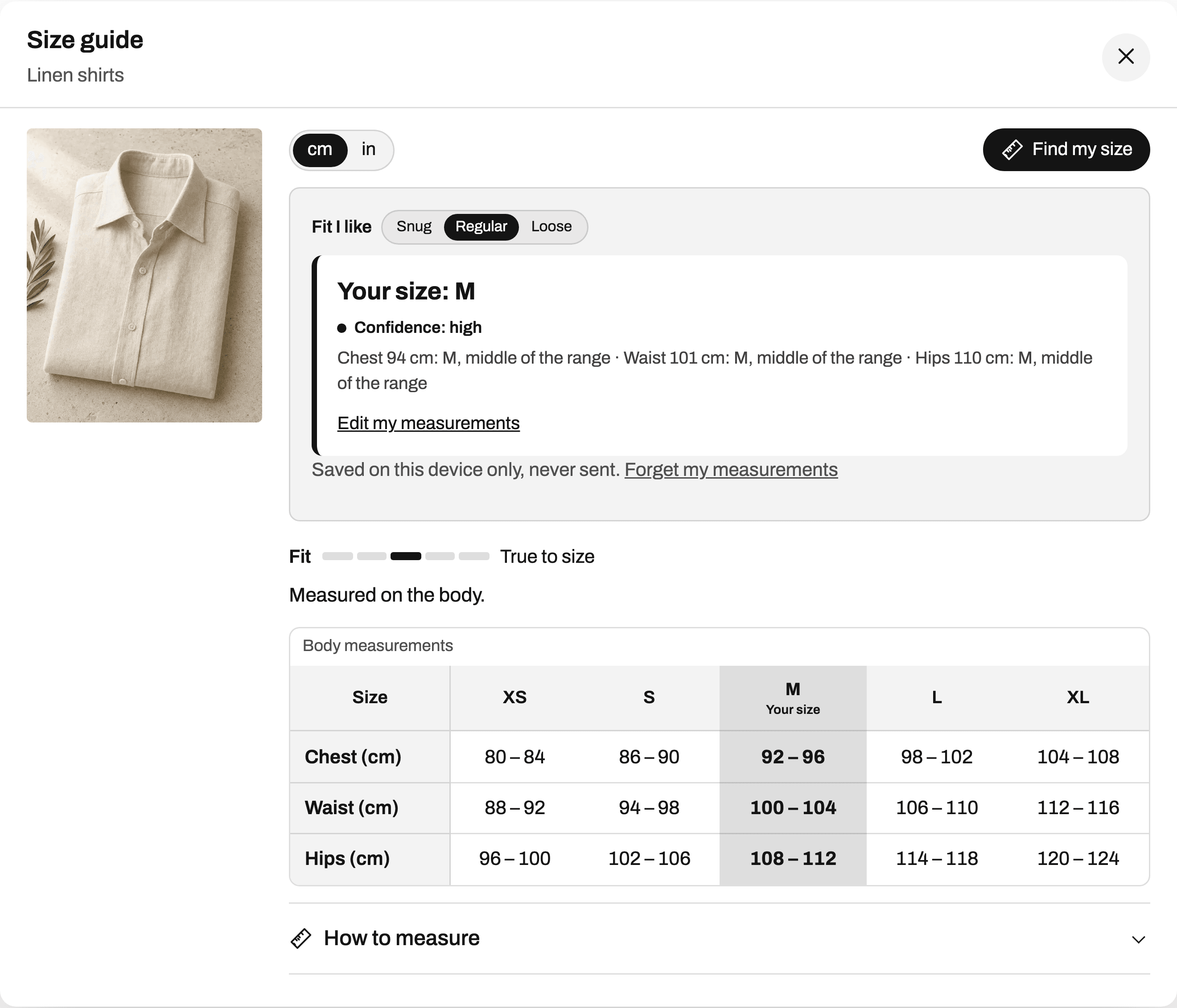
For this to work, the sizes in the chart (or one of its size systems, like a US row) must be written like the variant values. Capitals and extra spaces don't matter, and half sizes match however they're written: 7.5, 7½ and 7 1/2 all pick the same variant.
Products with sizes and no chart
Adding a Size option is also how Ruban Size finds products that need a chart. Its coverage report lists every product with a size option (Size, Shoe size, Ring size, US size and the same words in other languages) that shows no chart, along with charts shown nowhere and products that match several. Each has a one-click fix.
Charts are attached by rules, not product by product: a tag, a product type, a vendor, a collection, words in the title, or the variant SKU ("SKU starts with JN"). The product rules page shows them all, and how to show a different size chart on each product goes through real setups.
The "Size guide" link itself goes next to the size option. With the app embed on, it places itself there on 25 of the 26 themes most used by stores with size charts; adding a size chart to Shopify has the setup from the start. The design page covers how the guide opens.
Questions
How do I add sizes to a product in Shopify?
Open the product, add an option in the Variants section, name it Size and type each size as a value. Shopify creates a variant per size, which you can give its own price, SKU and stock.
Should each size be a separate product in Shopify?
No. Sizes should be variants of one product, so shoppers choose the size on one page and you keep one set of photos, reviews and descriptions.
How do I show a size chart for my Shopify variants?
Use a size chart app that reads your size option. Ruban Size highlights the selected size in the chart, marks sold-out sizes, and lets Find my size pick the variant with "Select this size".
Why doesn't my size chart select the right variant?
The size in the chart is probably written differently from the variant value, like "Medium" in one and "M" in the other. Use the same spelling in both.
Keep reading
- Shopify guidesHow to add a size chart to ShopifyShopify has no size chart tool of its own, so you add one with an image, a page, metafields or an app. An app gives you real tables, the right chart on each product and a cm/in switch; the other ways mostly get you an image.6 min
- Shopify guidesHow to show a different size chart on each Shopify productLet the data your products already carry pick the chart. A rule on a tag, a product type, a vendor or a collection covers most catalogs, title and SKU conditions catch the rest, and exclusions and priority settle the overlaps.6 min
- Sizing explainedWhat "one size" means, and when it fitsOne size means the maker cut a single size to cover a range of bodies, through stretch, an adjustment or a loose cut. It fits when your body falls inside that range, so a one-size product should still say, in numbers, which bodies it fits.5 min
- Shopify guidesWhere to put the size chart on a product pageRight next to the size option, above Add to cart, as a link that opens the chart without leaving the page. On phones, a panel that slides up from the bottom. Inline and accordion layouts suit pages where the chart belongs in the details.5 min