
A size guide page for your whole Shopify store
A size guide page lists every size chart of your store on one page, for shoppers who check sizes before they browse. Create a page in Shopify, give it a template with a size guide block, and link it from your menu. It adds to the link on each product; it doesn't replace it.
A size guide page is one page of your store that holds every size chart you have: tops, dresses, jeans, shoes, kids. Shoppers reach it from the menu or the footer, search for the chart they need, and read it before they even pick a product. In Shopify, it is a page like your About or Contact page, with the charts on it.
It is an addition, not a replacement. On a product page, the right chart is the one next to the size option; the store-wide page is for the shoppers who start somewhere else.
Who uses a size guide page
- Shoppers who check before they browse. They want to know their size in your brand before they look at anything.
- Gift buyers, who need several charts (a partner's shirt size, a child's shoe size) and no single product.
- Returning customers checking whether your sizing changed.
- Your customer service, who can send one link instead of pasting a chart into a reply.
- Your other pages: a returns policy, an FAQ or an order email can point to it.
What it should hold
- Every chart, named the way shoppers search. "Women's jeans", "Men's shirts", "Kids' shoes", not "Chart 3".
- Categories, so a shopper can narrow to Women, Men or Kids.
- A search, for stores with more than a handful of charts.
- How to measure, next to each chart or once for the page.
- A unit switch, so shoppers in the US read inches and the rest centimeters.
- Fit notes where a product runs small or large, and a link to your exchange policy.
That is the difference between a page of charts and a page of guides: size chart vs size guide goes through what each one holds.
Building it by hand
Shopify lets you create the page itself under Online Store > Pages and type or paste a table into it. That works, with the costs of any hand-made chart: the numbers are typed twice (once on the page, once wherever the product shows them) and drift apart with every update, there is no unit switch, and a long page of tables is hard to read on a phone. How to add a size chart to Shopify compares the do-it-yourself ways.
Building it with Ruban Size
Ruban Size's size guide page shows the same charts as your product pages, so there is nothing to type twice. It is an app block, so it needs an Online Store 2.0 theme.
- Create the page. In your Shopify admin, go to Online Store > Pages, add a page titled "Size guide", leave the content empty or write a line of introduction, and save.
- Make a template for it. Open the theme editor, choose Pages in the template menu at the top, and create a new page template, for example "size-guide". A separate template keeps the block off your other pages.
- Add the block. In that template, add a section that takes app blocks (many themes have one called Apps) and add the Size guide page block to it. Set its Heading (leave it empty when the page already shows its title) and its Default unit: As written, Centimeters or Inches. Save.
- Assign the template. Back on the page in your admin, set its theme template to "size-guide" and save.
- Link to it. In the menu settings of your admin, add the page to your footer or main menu.
What shoppers get:
- A search box, "Search size charts", that filters the charts by title as they type.
- Category buttons, All first, built from the category you give each chart in its Content tab. They appear as soon as your charts have at least two categories.
- A cm/in switch for the whole page, and every chart in its folding row with its title and category; a tap opens the chart, with its tables, size systems and how to measure.
Only active charts appear: drafts never do, and a chart limited to some countries only shows to shoppers from those countries. Long catalogs are split into pages of 250 charts, and the search tells the shopper when it only covers the page they're on, with a link to search the next one. On the Free plan, the page shows your 5 active charts; the pricing page has the rest.
A link can also open the page already filtered: add ?q= and a word to its address, like /pages/size-guide?q=jeans, and the search starts with "jeans". That's handy in a customer service reply or on a collection page.
Styling and languages
The page takes its colors, fonts, table and folding-row style from the Appearance page of Ruban Size, the same settings as the size guide on your product pages. The design page covers the 105 settings and the six presets.
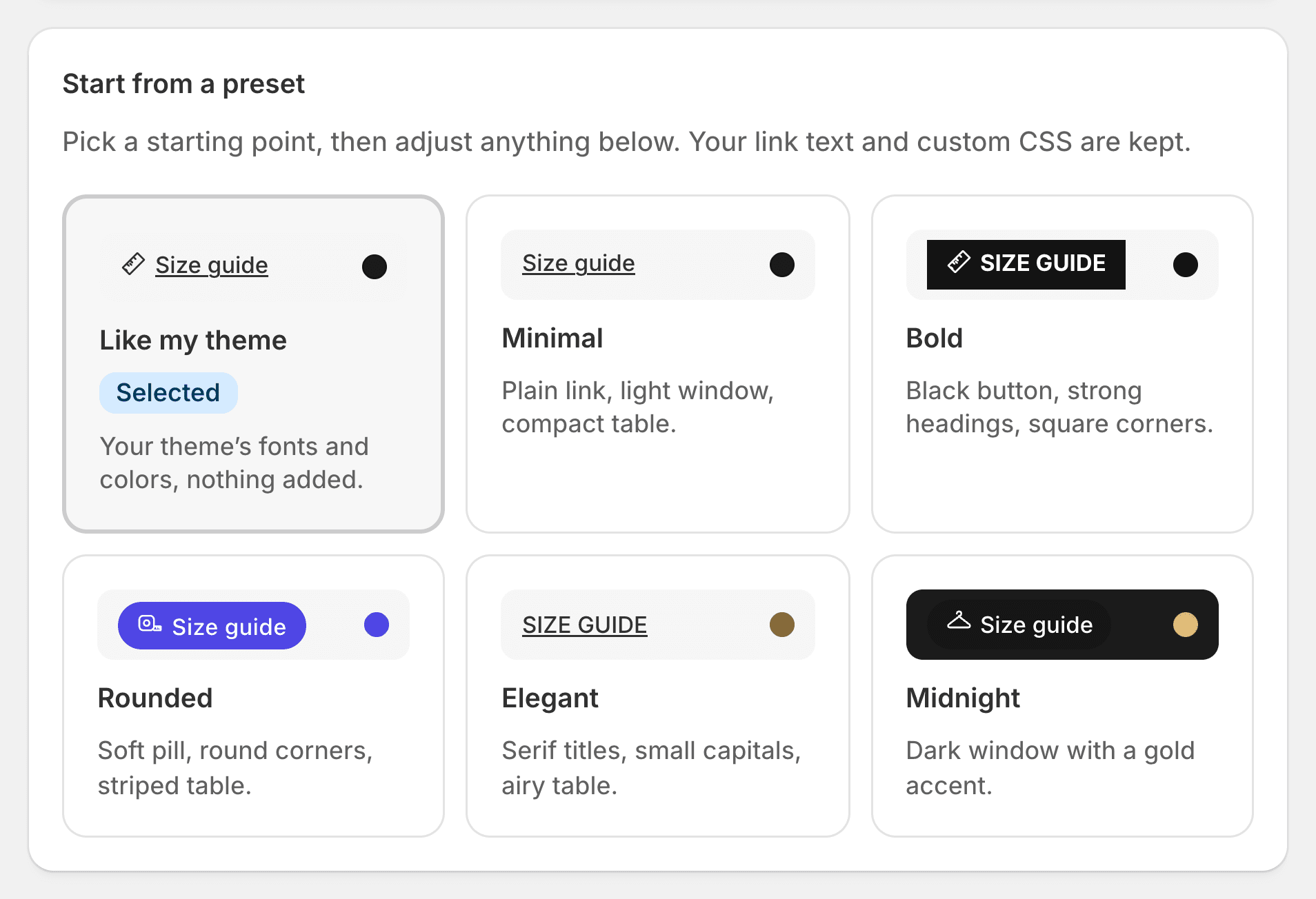
The page's own words ("Search size charts", "All") follow the language of the store a shopper visits, in 22 languages, and each chart shows its own translation, made in the app field by field. The translations page explains how.
The page is for reading and comparing. Find my size and "Select this size" live on product pages, where there is a size option to pick: each chart's guide there is set up in the size chart editor, and where to put the size chart covers that link.
Questions
How do I create a size guide page on Shopify?
Create a page under Online Store > Pages, give it its own page template in the theme editor, and put your charts on it, typed by hand or with a size chart app's page block. Then add the page to your menu or footer.
Should I have a size guide page or a size chart on each product?
Both, if you can. The product page should show the chart for that product, next to the size option. A store-wide page helps shoppers who check sizes before browsing, or who need several charts at once.
Where should I link my size guide page?
In the footer and, for clothing stores, in the main menu. Link to it from your returns policy, your FAQ and customer service replies too.
Can the size guide page show only some charts?
With Ruban Size, it shows every active chart; drafts stay hidden, and charts limited to some countries only appear in those countries. Shoppers narrow the list with the search and the category buttons.
Keep reading
- Sizing explainedSize chart vs size guide: what's the differenceA size chart is the table: sizes on one side, measurements on the other. A size guide is everything a shopper needs to use it: the chart, how to measure, how the item fits, and a way to get a size from their own numbers.5 min
- Shopify guidesWhere to put the size chart on a product pageRight next to the size option, above Add to cart, as a link that opens the chart without leaving the page. On phones, a panel that slides up from the bottom. Inline and accordion layouts suit pages where the chart belongs in the details.5 min
- Shopify guidesHow to add a size chart to ShopifyShopify has no size chart tool of its own, so you add one with an image, a page, metafields or an app. An app gives you real tables, the right chart on each product and a cm/in switch; the other ways mostly get you an image.6 min
- Shopify guidesHow to show a different size chart on each Shopify productLet the data your products already carry pick the chart. A rule on a tag, a product type, a vendor or a collection covers most catalogs, title and SKU conditions catch the rest, and exclusions and priority settle the overlaps.6 min